
Blog
May 31, 2023
Using Perforce P4 Server Resource Pressure Awareness for Proactive Monitoring

Version Control
Does your version control system support your team’s proactive monitoring efforts?
Perforce P4 customers often test the limits of scale and performance on different dimensions. Some of these dimensions include the number of files, the size of files, the number of users, and the number of concurrent transactions. As these dimensions are stressed, oftentimes server resources, such as memory and CPU, are also stressed.
The release of Perforce P4 2023.1 included new functionality — Resource Pressure Awareness — aimed at ensuring that Perforce P4 performs in a reliable manner when experiencing unpredictable loads. It prevents the exhaustion of select physical resources by limiting the amount of work that will be accepted. Note that these enhancements build on the ability to prevent a rogue user from executing a runaway command that was introduced in the 2022.2 release of Perforce P4.
Here, we explain what Resource Pressure Awareness is and how to set it up. Read on to start using this Perforce P4 feature for proactive monitoring.
What Is Perforce P4 Server Resource Pressure Awareness?
Resource Pressure Awareness allows system administrators to enable resource monitoring and set limits for when various approaches to throttling should be invoked to maintain server availability.
What Is Perforce P4 Server Resource Pressure Awareness Used For?
Resource Pressure Awareness is used for proactive monitoring. It is used to ensure that a server does not run out of available memory and/or run out of available CPU. Running out of either resource could result in unplanned downtime, which negatively impacts developer velocity.
It is important to note that some features are dependent on the capabilities of the underlying operating system. For example, CPU awareness is only available on Linux-based operating systems, and the version of Linux must support cgroups v2.
Benefits of Perforce P4 Server Resource Pressure Awareness
The target use case for Resource Pressure Awareness resource monitoring is to prevent large spikes in resource usage. The server will even out the spike, spreading the load over a larger period of time.
How to Set Up Perforce P4 Server Resource Pressure Awareness Configurables
To enable Resource Pressure Awareness, simply upgrade your P4 server to version 2023.1 (or greater).
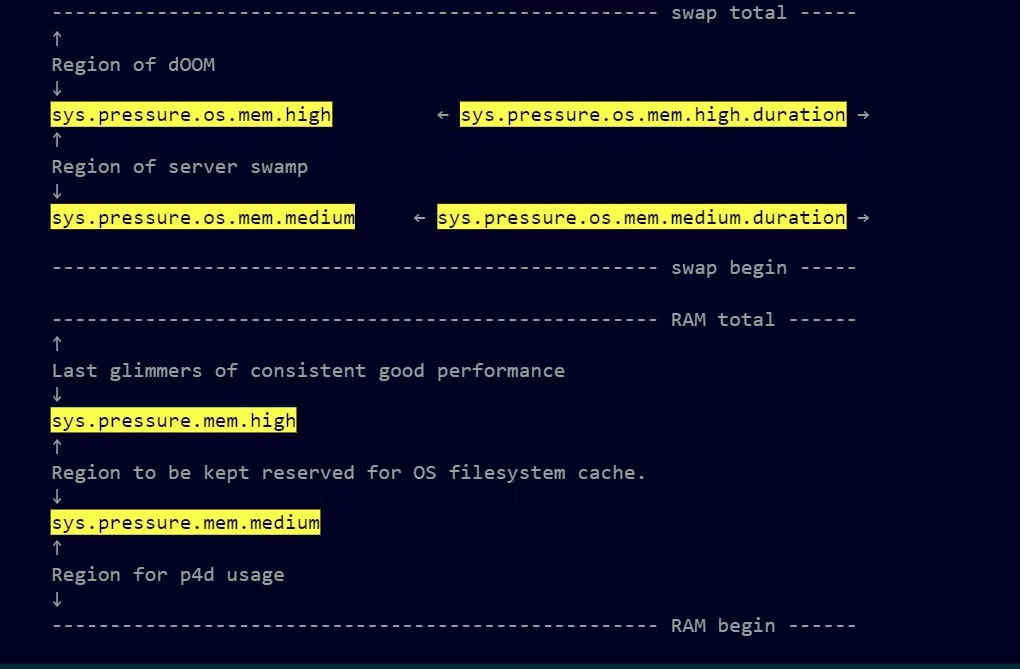
Once upgraded, you will have a plethora of new configurables at your disposal. Those configurables are as follows:
- Percentage-based memory thresholds, ranged from 0-100, which are the ratio of total system memory versus memory available to use without swapping.
- sys.pressure.mem.high
- sys.pressure.mem.medium
- OS-supplied resource pressure thresholds, ranged from 0-100, defined as the percentage of processes on the system stalled for the resource. These configurables are only applicable to Linux servers where the version of Linux includes cgroups v2 support.
- sys.pressure.os.cpu.high
- sys.pressure.os.mem.high
- sys.pressure.os.mem.medium
- The maximum number of seconds an individual command may wait while paused before giving up and returning an error to the client.
- sys.pressure.max.pause.time
When any of the above medium thresholds are reached, new incoming commands will be automatically placed into a paused state. Similarly, when the any of the above high thresholds are reached, new incoming commands will be automatically terminated.
There are a few other advanced configurables not mentioned here that will not be commonly used. You can find an exhaustive list in the Perforce P4.
How to Set Up Resource Pressure Awareness
- Set a server ID name, as it's a prerequisite for background processes.
p4 serverid $name- Enable real-time monitoring, as that's the method the resource monitor uses to communicate to commands being run.
p4 configure set rt.monitorfile=$monitor_file- Enable the resource monitoring background process. This is what samples resource pressure and calculates what to do about it.
p4 configure set "$name#startup.1=admin resource-monitor"- Enable preview-mode.
p4 configure set sys.pressure.max.pause.time=0- Restart the server so the background process is enabled.
p4 admin restart- Wait until you have seen enough activity to know that the server isn't indicating it would pause anything that you wouldn’t expect. To preview what the pauses would be, check the "Server under resource pressure. Pause rate" message in the log entries of the p4 admin resource-monitor background task.
- Adjust the configurables, if necessary, until you are satisfied with the preview results.
- Assuming you are happy with the results, turn off preview mode. This allows the full Resource Awareness feature to become active.
p4 configure unset sys.pressure.max.pause.timeHere is a diagram of where the memory pressure configurables lay in relation to each other:
Back to top
Get Started Using Perforce P4 Server Resource Pressure Awareness for Proactive Monitoring
Start using Resource Pressure Awareness by upgrading to the latest version of Perforce P4.