How to Version, Collaborate, and Get Studio Ready with P4 One
In the fast-paced world of creative production, managing files and versions can quickly spiral into chaos. Shared drives and manual versioning often lead to confusion, lost work, and inefficiencies that slow down your team.
This challenge is especially pronounced in industries like Media & Entertainment and Education, sectors with the lowest adoption of version control—just 26% and 27%, respectively—according to the 2025 State of Game Technology Report. Additionally, 37% of Media & Entertainment professionals respondents cite slow and difficult file transfers as a top concern.
That’s where P4 One comes in, designed to simplify workflows for artists, designers, or anyone working with highly visual assets. This guide will introduce you to P4 One, and the upgrade path available with P4 Cloud when you’re ready to collaborate on a large project. To get started quickly, you can also reference the P4 One documentation.
Whether you’re working solo or collaborating with a team, this guide will provide you with the technical details, including strategies for versioning and collaboration, you’ll need to confidently incorporate P4 One into your workflow.
Back to topWhat is P4 One?
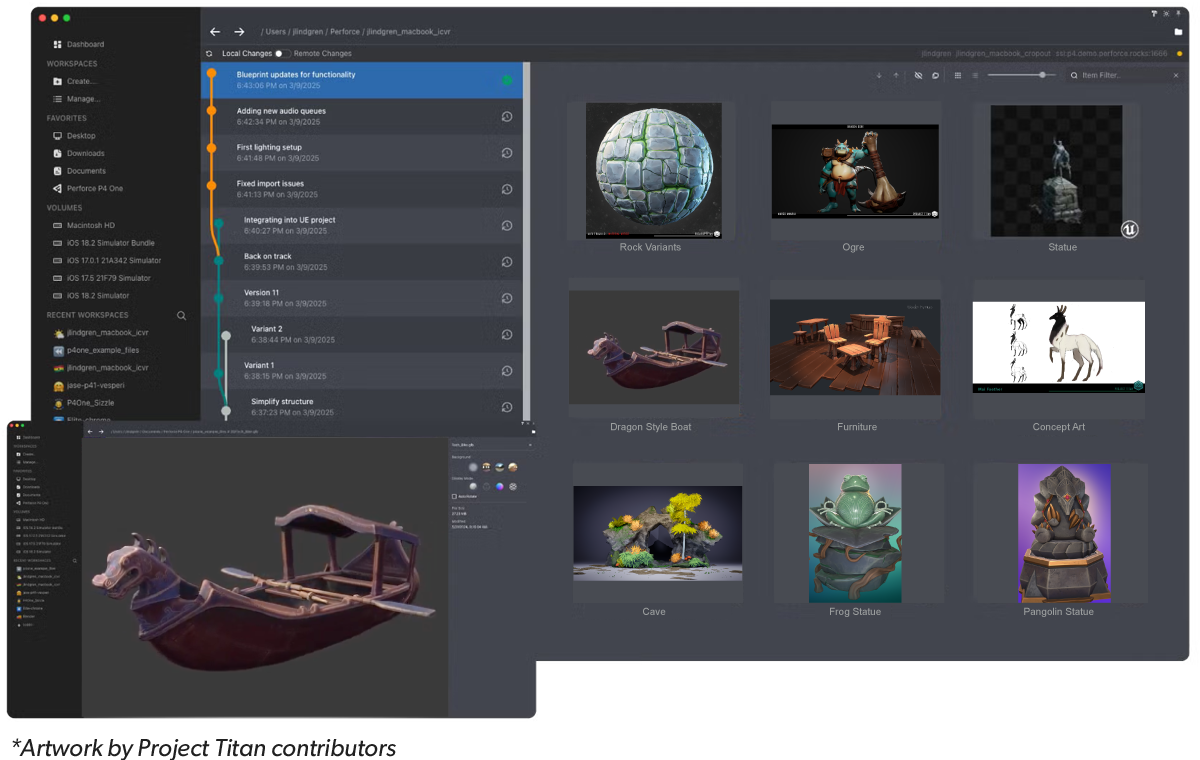
P4 One is a free version control client tailored for art teams—or really, anyone new to version control.
P4 One lets you version files locally, and like any tool in our P4 platform, it can handle large binaries and project sizes that can break other version control systems.
If you’re already using Perforce P4, P4 One provides an intuitive interface for your collaborators who don’t need all the controls of P4V—while still giving them a simple way to connect to an existing P4 environment.
Back to top"I've been using P4V for a while... [P4 One looks] way more user friendly."
3D Artist | ROOMTONE Games
How P4 One Works
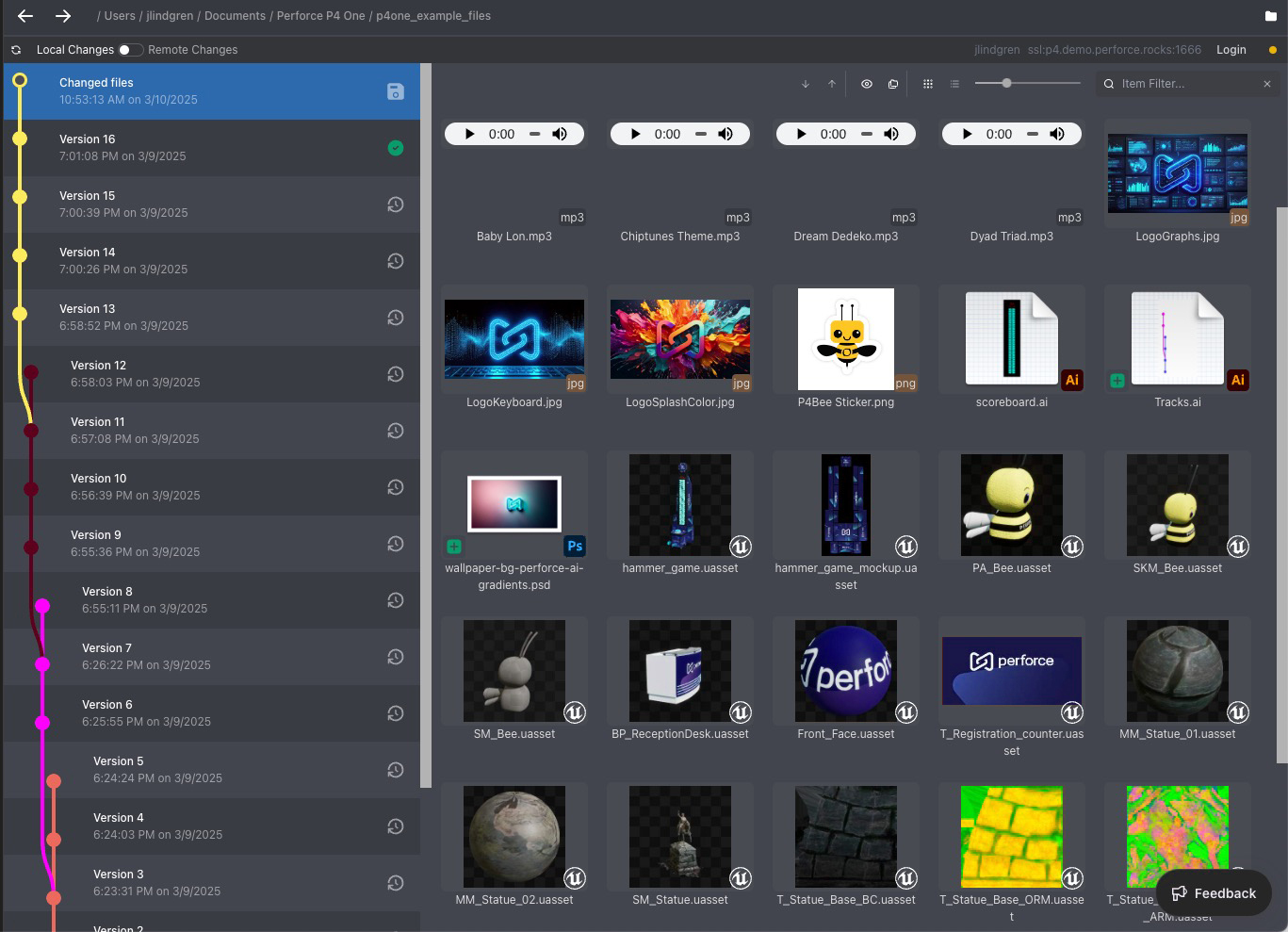
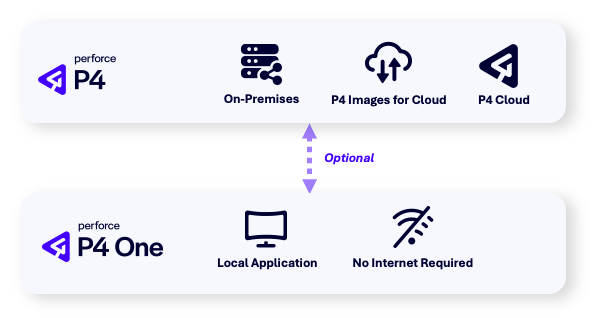
P4 One can work standalone without a P4 server connection. Thumbnail support and file format recognition are built into the app, so you can version locally and work offline.
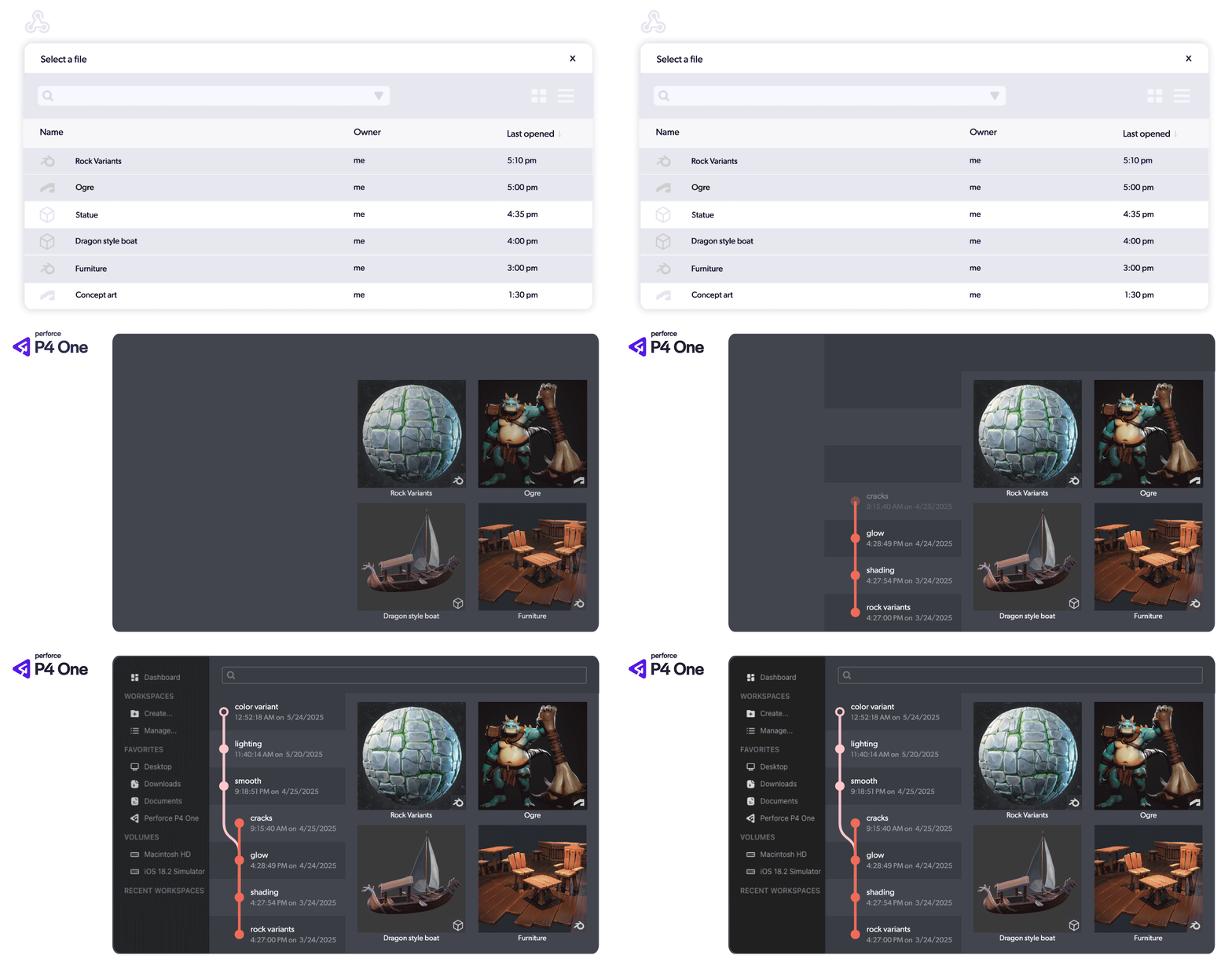
P4 One optionally connects to any P4 environment (including P4 Cloud), giving your team the ability to submit their work, while still iterating freely and versioning locally. P4 One supports Streams and classic depots, and even your pre-existing P4 workspaces, so you can easily plug it right into your team’s workflows.
In the following sections of this guide, we’ll walk you through a few common scenarios at both an individual contributor and team collaborator lens.
Back to topPart 1: P4 One for Solo Creators
Example Workflow in P4 One
Meet Alex, a solo game developer preparing to debut a playable demo of his indie game at GDC.
He wants to showcase his demo to investors and publishers who could help fund the full development of his dream project. The stakes are high—Alex is juggling everything from designing characters to building levels and coding gameplay mechanics, all while racing against the clock to polish a demo that will impress potential backers.
Before P4 One, Alex’s workflow looked like this:
- Manually copying the entire project folder to an external drive or cloud storage to create backups—just in case.
- Manually saving files with names like “CharacterDesign_v1,” “CharacterDesign_v2_final,” and “CharacterDesign_v2_final_final_final.”
- Digging through cluttered folders to find the right version of an asset.
- Constantly worrying about losing progress if their computer crashes.
After trying (and feeling intimidated by) some of the more commonly used source control tools out there, Alex found P4 One— version control built for creators, not just programmers.
The single download and easy setup provided a way for him to finally stop juggling endless “final_final” files.
Download P4 One and Get Started in Minutes
You'll find the latest setup instructions, including how to configure a .p4ignore file and connect to P4 Cloud, in the P4 One documentation.
The Immediate Benefits of P4 One:
As a solo game developer, this isn’t the first time Alex has used version control, but it is the first time he’s used one versatile enough to satisfy his high priority needs. Right away Alex notices how P4 One supports his workflow:
- Setting up a workspace
- Alex starts by creating a high-level project folder on his hard drive—this becomes his P4 One workspace.
- Once connected, P4 One begins tracking everything inside automatically.
- Alex sets up a .p4config file to ignore unnecessary files—like cache folders or auto-generated assets. This keeps his workspace clean and focused.
Note: While he could add each folder and file type manually, for Unreal Engine and common DCC tools, he uses a prebuilt config tailored to game development workflows, by simply downloading the file, naming it .p4config file (the dot at the beginning is important) and putting it in the root of the workspace.
- Creating and editing files
- Alex adds initial design files directly into the workspace.
- As he makes changes, P4 One versions each file automatically
- Tracking progress across the project
- Each version includes timestamps and visual previews, making it easy to follow the evolution of his work.
- P4 One tracks the state of the entire workspace, not just individual files—ideal for milestone-based workflows where multiple assets change together.
- Exploring ideas with confidence
- Alex can branch off to test new directions or get feedback, knowing he can always return to a previous state.
- This gives him flexibility to iterate and refine without risk or clutter.
When You’re Ready to Grow: Collaborating with Others
P4 One immediately solves several problems for individual contributors by eliminating manual versioning, preventing file loss, and creating a clean history of creative iterations. However, the full power of P4 One emerges when connected to a P4 Server or P4 Cloud.
With P4 One handling his solo workflow, Alex could finally stop worrying about file management and start creating with confidence. That confidence paid off on the big stage.
Alex’s indie game demo came together beautifully. The characters are designed, the levels are taking shape, and the gameplay mechanics are solid. He showcased it at GDC, wowed investors, and secured funding to take the project to the next level.
Now, Alex needs to bring on a sound designer and an animator to help finish the game. That means sharing files, collaborating on assets, and ensuring everyone is working on the latest version of the project.
But here’s the problem: Alex’s local P4 One setup is perfect for solo workflows, but he’s unsure how to leverage it for team collaboration.
It seems simple enough, and Alex is very familiar with using cloud file-sharing platform like Google Drive or Dropbox, but with a new version control perspective he can already start to see many of the limitations those tools will bring:
- The animator could accidentally overwrite Alex’s character designs while working on a new animation.
- The sound designer and Alex might both edit the same file at the same time, leading to lost progress.
- Files would be spread across different accounts, making it hard to track the latest versions.
What began as a simple file-sharing solution has now created versioning chaos that slows production and risks costly mistakes. Alex sat down with his team and drafted a pros and cons list of consumer cloud storage platforms:
Pros and Cons of Cloud File Sharing Platforms
| Pros | Cons |
|---|---|
| Minimal setup required to start sharing files | Files are often shared too widely for convenience and security |
| Most team members already understand how to use these platforms | Game engines, 3D models, and other specialized file types don't render in list view |
| Works across various operating systems and devices | File context and instructions are exchanged manually through channels like Slack and email |
| Commenting and basic permission settings | Duplicated files and manual versioning create significant storage waste |
| Quick link generation for external stakeholders | Slow download/upload speeds with large assets |
| Multiple people can edit the same file simultaneously, causing overwrite conflicts | |
| Difficult to locate specific versions or track revision history | |
| Performance and organization deteriorate as project size increases | |
| No reliable way to ensure all versions are properly preserved |
After reviewing the list and discussing with his team, Alex realized that while consumer platforms are convenient, they fall dramatically short for the needs of any game engine project.
They conclude that the manual workarounds required to compensate for these limitations would result in lost time, confusion, and errors that could risk the success of his project.
After seeing the limitations of consumer cloud storage firsthand, Alex knew he needed a solution designed for creative collaboration. While P4 One’s local versioning had served him well as a solo developer, his growing team required secure, organized, and efficient workflows that could scale.
That’s when Alex learned more about P4 Cloud — a fully managed and hosted deployment of P4 that P4 One can easily connect into. With P4 Cloud, he could maintain the simplicity of P4 One while unlocking the full power of the industry standard in version control. You can learn more about P4 Cloud here.
Back to topPart 2: P4 One for Teams
The Upgrade Path: Moving from P4 One to P4 Cloud
Since P4 One’s local versioning was so well-suited for Alex’s individual needs, he knew he wanted to maintain this workflow as he expanded to a small team. He knew connecting to P4 Cloud would provide the shared versioning and centralized access he would now need to complete his game.
After purchasing P4 Cloud and choosing an instance near his region, he set up configuration and guardrails to keep his project organized from the outset and for the additional collaborators he'd add as his game project progressed.
How to Configure Your P4 Connection to Work with P4 One
Connecting your P4 One workspace to P4 involves a few configuration steps and some decisions about how to set up collaboration between the two systems. Don't worry though—we've put together a guided setup that walks you through the process step by step. Head to the P4 One documentation on connecting workspaces for collaboration to get started.
Adoption Guide
New to streams?
They're designed to make branching and team collaboration much easier. Our Streams Adoption Guide walks through how it all works.
Revisiting Alex’s Workflow After the Upgrade
At first, Alex thought tools like Google Drive or Dropbox might be enough for his growing team. But once they connected P4 One to P4 Cloud, the difference was clear—it worked and performed above their expectations. Collaboration wasn’t just possible; it became a strength:
- The animator and sound designer all worked from the same Cloud depot. File locking prevented accidental overwrites, so no one lost hours of progress.
- The team kept using the P4 One client they already knew—only now it connected to P4 Cloud. No steep learning curve, just a seamless extension of their workflow.
- The animator branched off to experiment with new character designs, while Alex iterated on gameplay. Versions stayed organized and recoverable, no matter how many directions the project explored.
- With P4 Cloud hosting and maintaining the server, every commit was automatically backed up—giving Alex peace of mind that the project was safe from crashes or lost hardware.
For Alex, upgrading wasn’t about adding complexity—it was about unlocking collaboration while keeping the simplicity that made P4 One so approachable in the first place.
How to Choose the Right Tool
Choosing the right version control tool depends on where you are in your creative journey.
- Solo creators often benefit from starting with P4 One, which offers local-first versioning without the need for IT setup.
- Small teams can expand into P4 Cloud to support collaboration, file sharing, and centralized version history.
- Larger studios or growing teams often require advanced server topologies, including the efficiency benefits proxy, replica, or edge servers can provide their teams. These are available through some of our other pricing plans, or through our P4RA Services.
If you're managing multiple projects or anticipating growth in the next 1–2 years, contact us and we'll help you find the best fit for your needs.
Resources
Want to introduce your whole team to version control? Here are some essential resources to help you succeed from day one.
Get Access to P4 One
Try P4 One and transform the way your artists and designers work.
Streams Adoption Guide
See how studios streamline teamwork, avoid merge headaches, and build smarter workflows from day one.
P4 One Documentation
Refer to the official documentation for the latest setup steps, best practices, and feature updates.