
What's New in Perforce ALM 2026.1
Perforce ALM 2026.1 includes the following key features and enhancements. For a list of all new features, enhancements, and bug fixes, review the release notes.
Product name change to Perforce ALM
Perforce Helix ALM is now simply "Perforce ALM." You'll see the new logo in the product, as well as refreshed colors in the web client and a more modern look and feel in the product documentation, all reflecting ALM's place within broader DevOps workflows. To learn more, see our blog: Helix ALM is now Perforce ALM.
Duplicate dashboard widgets
Administrators can now duplicate dashboard widgets in the desktop client. You can also duplicate widgets when duplicating a dashboard.
Other enhancements
- The Microsoft Visual Studio integration now supports Visual Studio 2026.
- Improved server performance when running trend reports.
What's New in Perforce ALM 2025.2
Helix ALM is now Perforce ALM! Learn more about the name change.
Perforce ALM 2025.2 includes the following key features and enhancements. For a list of all new features, enhancements, and bug fixes, review the release notes.
Organize filters and reports using tags
Administrators can now create tags for grouping related filters or reports, such as those for a specific product or release. If your team has a large number of filters or reports, use tags to organize them and help team members find them more easily in various areas of ALM.
Tags have a unique name, optional description, text color, background color, and icon to help users identify them at a glance.
To easily add or remove tags to a group of selected filters or reports, you can bulk change tags to apply the changes at once.
Add filters or reports as favorites for quick access
Add specific filters or reports as favorites to find them more easily. If you no longer want a filter or report to be a favorite, you can remove it from your favorites.
Use new filtering options to find relevant items in the Filters and Reports lists
New filtering options in the Display Options pane make it easier for users to find relevant items in the Filters and Reports lists. Limit the displayed filters or reports based on the allowed access, whether they are favorites, or by selected tags.
View and manage filters using the Filters list in the web client
You can now view all filters in a project in the Filters list in the web client. To access filters, click Filters in the navigation bar.
From the Filters list, you can perform the following actions on filters: view, add, edit, duplicate, add favorites, remove favorites, bulk change tags, export to Microsoft Excel, and export to text.
Learn more about these features in our blog: The Latest ALM Solutions: Filtering and Tagging.
What's New in Perforce ALM 2025.1
Helix ALM is now Perforce ALM! Learn more about the name change.
Perforce ALM 2025.1 includes the following key features and enhancements. For a list of all new features, enhancements, and bug fixes, review the release notes.
Improved requirement document Specification Document window (desktop client)
The requirement document Specification Document window has many usability and performance improvements, and is now more consistent with the web client experience:
- View and edit requirement review workflow events in a document without switching to Review Mode, which no longer exists. You can hide review events in the Show notes list.
- Select requirement text without editing the requirement.
- Click an inline image to open a preview.
- Press and hold CTRL and rotate the mouse wheel button to zoom in and out on the requirement details pane.
- Multi-line text field width is no longer fixed and spans the width of the single-line columns or page, depending on which is larger.
- Inline images that are too wide are scaled down instead of cut off.
Add test cases to folders from the Automation Suites list (web client)
You can now add test cases to folders when editing and viewing automation suites and automation builds.
Include file attachment names in matrix reports (desktop and web clients)
You can now include item file attachment names in matrix reports. Use the %ATTACHMENT_FILENAMES% field code.
Other enhancements (desktop client)
- Scaling in the View Image dialog box is now more accurate and does not resize when navigating between multiple images.
- Inline images are now cached so they do not require downloading when viewing again.
- The Qt framework that the Helix ALM desktop client uses no longer uses WebKit and adopted WebEngine, which is Chromium browser technology. The new rendering engine is better tuned for multi-processing, uses a smaller memory footprint, and has a larger development community, providing improved support for HTML5 and security-related updates.
What's New in Helix ALM 2024.3
Helix ALM 2024.3 includes the following key features and enhancements. For a list of all new features, enhancements, and bug fixes, review the release notes.
Addressed security vulnerabilities
Perforce consistently upgrades frameworks and modules used to build our software to address security
What's New in Helix ALM 2024.2
Helix ALM 2024.2 includes the following key features and enhancements. For a list of all new features, enhancements, bug fixes, and other details, review the release notes.
Configure Field Layouts to Organize Fields in Groups
Helix ALM administrators and other high-level users can now configure field layouts to organize fields in groups to improve the user experience in Add, Edit, and View Item windows/pages.
Watch this brief demo to see how easy it is to configure field layouts to help teams quickly access the information most important to them:
Each item type has a default layout you can use, or you can configure different layouts for specific security groups and requirement types.
To help users understand the purpose of a group of fields, you can provide a description of a group in a tooltip. To identify any problems with a field layout, such as missing required fields or fields included in the layout that are hidden by field security, you can evaluate the layout to generate a report to help with troubleshooting.
When upgrading the Helix ALM desktop client from an earlier version, fields that were previously displayed in the main area are now in the General group and custom fields are now in the Custom Fields group.
To learn more, see Configuring field layouts.
Enhancements for Users with Requirement Management Reviewer Licenses
In the Helix ALM web client, users logged in with a Requirements Management Reviewer license and a Test Case Management license can now generate test cases while reviewing a requirement.
Users logged in with a Requirements Management Reviewer license and an Issue Management license can now create an issue while reviewing a requirement.
What's New in Helix ALM 2024.1
Helix ALM 2024.1 includes the following key features and enhancements. For a list of all new features, enhancements, bug fixes, and other details, review the release notes.
Document Test Coverage Panel
You can now see the current state of testing using the new document test coverage panel available in requirement documents and requirement document custom reports.
Other Enhancements
- To support the new document text coverage panel, you can exclude specific requirement types from document test coverage statistics.
- Added a new command security to allow users to configure document test coverage.

What's New in Helix ALM 2023.4
Helix ALM 2023.4 includes the following key features and enhancements. For a list of all new features, enhancements, and bug fixes, review the release notes.
Open Requirements in Microsoft Excel
Helix ALM now allows you to open requirements in Microsoft Excel directly from requirements documents.
Prevent Importing Automated Replies and Mail List Generated Emails
Helix ALM now filters out automated replies and mail list generated emails from being imported into an issue.

What's New in Helix ALM 2023.3
Helix ALM 2023.3 includes the following key features and enhancements. For a list of all new features, enhancements, and bug fixes, review the release notes.
Webhooks
Helix ALM now supports webhooks. Configure webhook recipients and webhook automation rules to send a webhook when an issue, test case, test run, requirement, or requirement document is changed in Helix ALM.
Purge Server Logs Automatically
Configure Helix ALM to automatically purge server log entries from the Admin client.
Enhanced Image Viewing
Use the new View Images dialog to scroll through attached images.
Enhanced Control Over Automation Suite Builds
Helix ALM has added new command securities to give users greater control over automation suite builds:
- Automation suite builds can now be protected so they cannot be deleted.
Automation suite builds that contain automated test results that are included in links can now be deleted.

What’s New in Helix ALM 2023.2
Helix ALM 2023.2 includes the following key features and enhancements. For a list of all new features, enhancements, and bug fixes, review the release notes.
New Feature: Visual Traceability
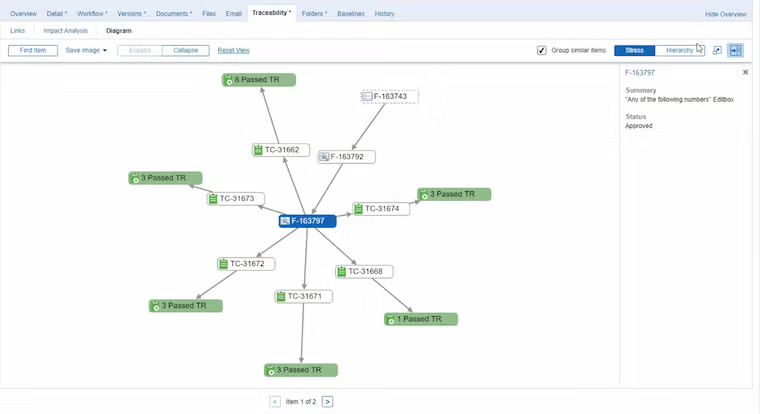
Helix ALM 2023.2 introduces Visual Traceability, an interactive, dynamic traceability diagram that helps you visualize the relationships and dependencies between all the requirements, test results, issues, and other items in your workflow.
Because it allows you to easily view all artifacts related to any given requirement, this new traceability feature also helps you better understand the full impact of any change to a requirement before you make it. (Web)
Enhanced Requirements Management
Helix ALM has enhanced its requirements management capabilities:
- Requirement document field codes can now be used in snapshot labels.
- Classic MS Word and Excel export timeout values can now be configured as a local option.
Enhanced Searching
Searching on item numbers has been added to the list window find toolbar.
Other Enhancements
Creating an issue using the SOAP SDK now selects the active user when two customer records have the same name.
What’s New in Helix ALM 2023.1
Helix ALM 2023.1 includes the following key features and enhancements. For a list of all new features, enhancements, and bug fixes, review the release notes.
Automated Test Results can now appear in the Matrix Report
You can now add automated and manual test results related to test cases (or linked to any other item type) to Matrix Reports.
Enhanced linking
Helix ALM has enhanced its linking capabilities.
- Links to requirements within a specification document view now scroll to the requirement in the document and select it.
- HTTP links to Helix ALM items in the Helix ALM desktop client now open the item in the desktop client if the item is in the same Helix ALM project.
Image scaling
In the desktop client you can now specify if the View Image dialog should scale the image being viewed to fit within the window or to display it at 100%.
Enhanced stamp formats
You can now use the new field code, %TMLT%, to add your local time to the project options stamp format.
Other enhancements
- Workflow event fields can now be specified as parents in field relationships to other fields in the same event.
- Download Excel File for reports now uses the report name instead of "matrix-report" for the downloaded Excel file.